
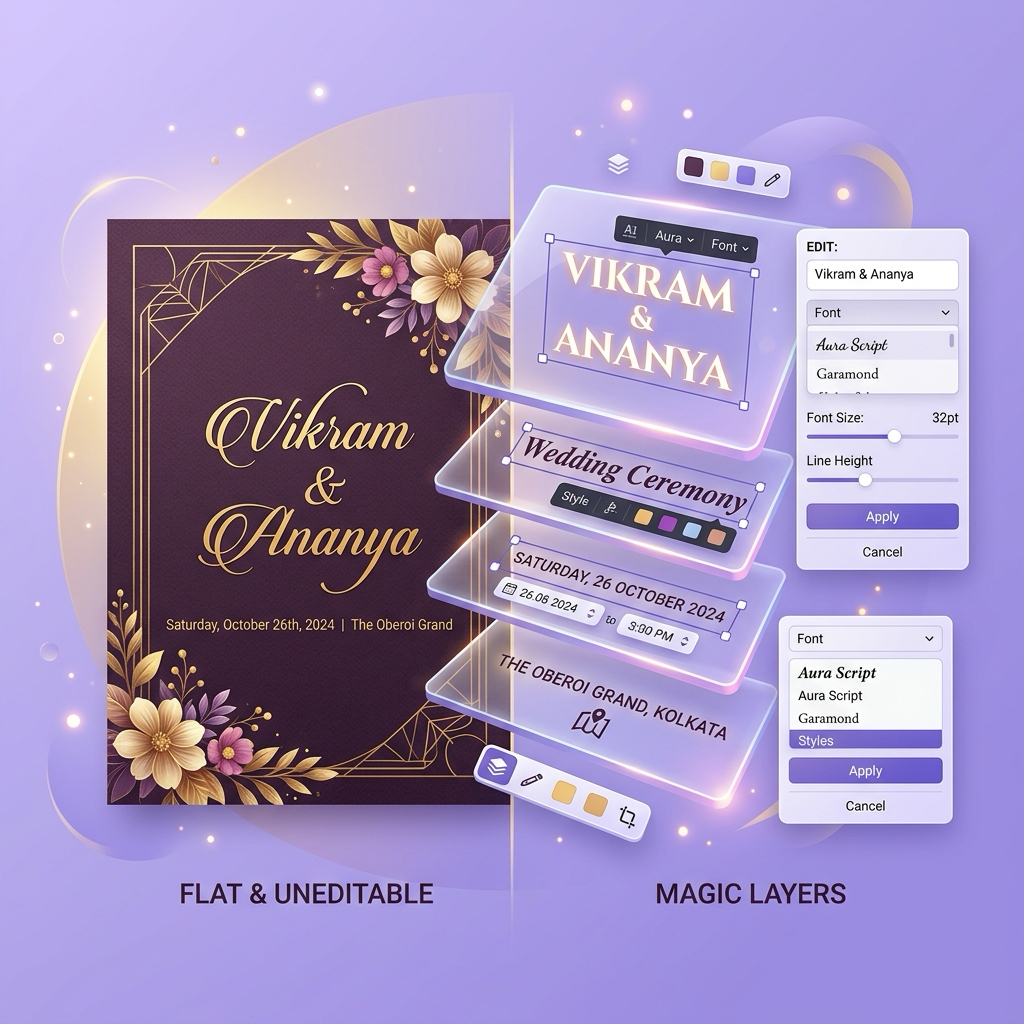
The flat image problem
Many invitation ideas begin as a flat image. You may find a wedding invite layout on Pinterest, a birthday design on Instagram, or an old card saved as a JPG or PNG. The design looks close to what you want, but the important details are locked inside the image.
That is the problem Magic Layers is designed to solve. Instead of treating the reference as a single uneditable picture, Kalpora helps identify text and design parts so you can rebuild the invite as an editable Kalpora design.
Import Template and AI Text Extract are connected
In Kalpora, there are two ways you may enter this workflow:
- Import Template: Use this when you are starting from a reference image or URL. It brings the reference into Kalpora and begins the extraction workflow.
- AI Text Extract: Use this when the image is already on the editor canvas. It runs the same kind of extraction from inside the editor.
So, Import Template is the entry point. AI Text Extract is the action inside the editor. Both are part of the same practical goal: turn a flat invite reference into editable text and design parts.
Step 1: Bring in your reference
To begin, open the Import Template flow. You can upload an image from your computer or phone, or use a supported design reference URL. A common use case is importing an invitation reference from places like Pinterest or Instagram, then rebuilding it in Kalpora so the event details can be edited.
You can also import a video reference in supported flows. The important distinction is that Kalpora should not be described as directly editing the source video. A safer way to think about it is that a video reference can help produce image frames and editable text or design parts.
Step 2: Run AI Text Extract
If the image is already inside the editor, select it and use AI Text Extract. Kalpora will analyze the image and help separate the editable information from the flat reference.
During this process, the AI can help with three important tasks:
- Identify text: It detects names, dates, venue details, and other written content.
- Prepare editable text: It creates text elements that can be changed inside the editor.
- Preserve the visual direction: It helps keep the design close to the reference while making the important parts editable.
Step 3: Edit the invitation details
Once the reference has been processed, you can start editing the invite like a Kalpora design. Change the couple's names, birthday child's name, date, time, venue, RSVP details, colors, and text placement. If the design has image areas, you can replace or add photos as needed.
This is where Magic Layers becomes useful for real invitations. You are not just generating a pretty image. You are creating something that can be personalized for a family, event host, or customer.
Step 4: Refine with the editor and Scout
After extraction, the editor gives you control over the final result. You can adjust fonts, alignment, color, layout, and visual balance. If you want help changing the tone of the design, Scout can help interpret plain-language instructions such as "make this more royal", "make it softer and floral", or "make this birthday invite more playful."
For templates that support motion or video-style output, you can also use available animation, transition, timing, and audio controls. Keep the claim precise: Magic Layers helps make references editable. It does not guarantee a perfect recreation of every third-party design.
When to use Magic Layers
- Use it when you have a flat invitation image but need editable names and dates.
- Use it when a customer sends a reference and asks for something similar.
- Use it when you want to rebuild a design direction into a reusable Kalpora template.
- Use it when you want a faster starting point than recreating everything manually.
Ready to try it out?
Bring in a reference, extract editable text, and turn the design into a Kalpora invitation you can personalize.
Open AI Studio