
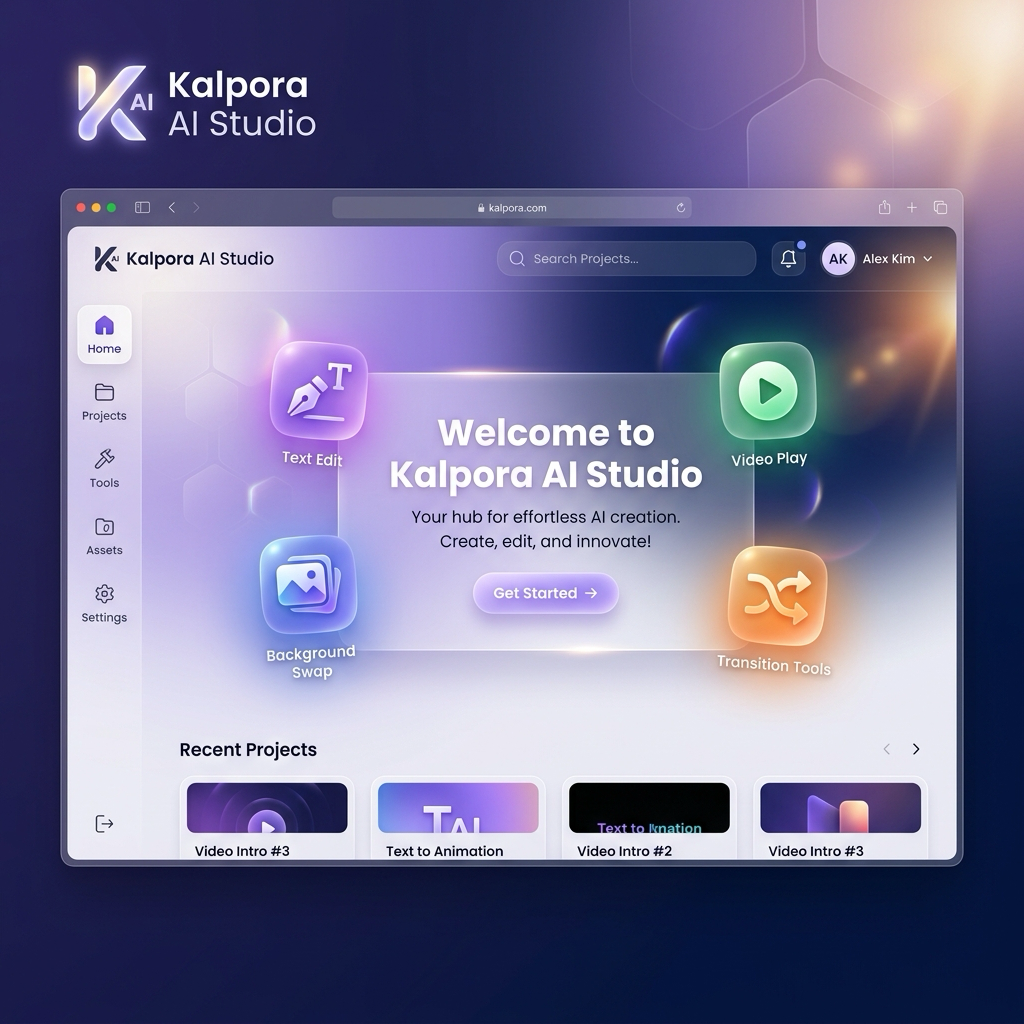
What Kalpora is for
Kalpora is an AI invitation platform for people who want beautiful event invites without starting from an empty canvas. The current template experience is centered on wedding invitations and birthday invitations. Users can browse real templates, open one in the editor, and personalize it for their event.
Kalpora is also built for designers. A designer can create reusable templates, publish them on Kalpora, and make them available for customers to use or buy. That means the platform is not only a design editor. It is also a template marketplace where creators can turn their design style into reusable products.
Templates: AI and non-AI
Templates are the starting point. Some templates are regular editable designs. Others are AI-assisted templates, which we often call Magic Invites. This is similar to the way a modern design platform can have both classic templates and AI-powered creation flows.
For an end user, the difference is simple. A non-AI template gives you a beautiful editable design to personalize. An AI template can give Kalpora more context for AI-assisted changes, visual generation, or guided customization. In both cases, the goal is the same: start with a strong design and make it personal.
The Kalpora Dashboard
When you open the Kalpora Dashboard, you can browse invitation templates by category. For now, the most important categories are wedding invites and birthday invites. You can also explore AI templates through the Magic Invites path when available.
A good workflow is to pick a template that is already close to the event mood: traditional wedding, modern wedding, birthday party, playful theme, premium invitation, or a simple editable card. Starting close to the final direction saves time and helps the AI tools understand the style you want.
What happens inside AI Studio
When you open a template, it loads into Kalpora AI Studio. This is the editor where you personalize the invitation. You can update names, dates, venues, text, images, colors, and design details. If the design has editable layers, you can select and adjust those parts directly.
The editor also supports motion-oriented invitation work where available. That can include animations, transitions, timing, and audio-related controls depending on the template and export flow. The key point is that Kalpora is invitation-first: the tools are organized around creating and personalizing event invites, not around building a general-purpose design file from scratch.
Import Template and AI Text Extract
Sometimes you do not want to start from an existing Kalpora template. Maybe you have a reference image, a Pinterest design, or an Instagram-style invite you want to recreate in an editable way. This is where Magic Layers comes in.
Import Template and AI Text Extract are closely related. Import Template is the entry point when you bring a reference into Kalpora. AI Text Extract is the action you can use when an image is already on the editor canvas. Both help convert a flat reference into editable text and design parts, so you can change names, dates, colors, and layout details instead of being stuck with a single flat image.
Scout: plain-language help for creation and editing
Scout is Kalpora's AI assistant. You can describe what you want in plain language and Scout helps create invitations, edit designs, generate AI visuals, and transform content. For example, you can ask for a royal wedding invitation style, a softer floral birthday invite, a more premium look, or a cleaner modern version of a design.
Scout should be understood as a design assistant, not as a promise that every video or timeline detail is edited automatically. You remain in control of the final invitation while Scout helps you move faster from idea to polished design.
How designers fit into Kalpora
Designers can use Kalpora to create reusable invitation templates. A good creator template is not just a finished image. It is a design that customers can personalize: names, dates, event details, photos, colors, and other editable parts. Designers can publish these templates so users can use or buy them.
This creates a useful balance. Families and event hosts get beautiful templates they can personalize quickly. Designers get a way to package their creative style into reusable products and earn from their work through published templates.
A simple first workflow
- Open the template library and choose a wedding or birthday invite.
- Customize the important details: names, date, venue, text, photos, and colors.
- Use Scout when you want plain-language help with the visual direction or design changes.
- Use Import Template or AI Text Extract if you are starting from a reference image instead of a Kalpora template.
- Export the invitation in the supported format when it is ready to share.
Ready to start creating?
Start from a real wedding or birthday template, then personalize it in Kalpora AI Studio.
Open AI Studio